
Inserting and formatting memory cards
A memory card is the removable storage your camera uses for photographs and video. Before you take photographs you need to know which card your camera accepts, how it goes in, how to remove it safely and what the camera means by formatting it.
Before you start
Have the camera or phone beside you while you read. Do not try to memorise the page. Find each control or try each idea as it is explained. If a term is unfamiliar, the explanation here matters more than remembering the name.
Find the card slot
Switch the camera off. The card slot may be behind a door on the side of the camera or inside the battery compartment. Open the door gently. If you have to force it, stop and check the camera manual.
Check the card type
SD and microSD are common, but cameras use several card formats. Use the type specified by the camera manufacturer. A card that physically looks similar is not automatically suitable.
Insert it the right way round
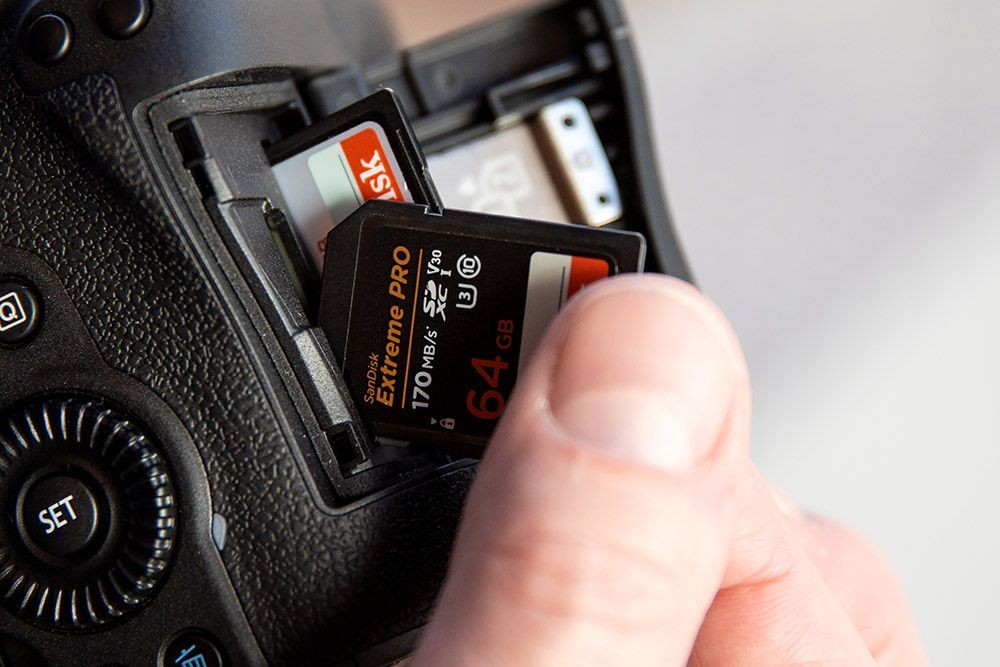
Look for the small diagram beside the slot or inside the door. Line the card up with that diagram and push gently until it clicks or seats fully. Never force a memory card. If it will not go in with light pressure, it is probably the wrong way round.
Remove it safely
Make sure the camera has finished writing. Many cameras show a small access light while saving a photograph. Switch the camera off before removing the card, particularly while you are learning. Press a spring-loaded SD card in gently and it should pop out far enough to grip.
Formatting is not the same as deleting one photograph
Formatting prepares the card's file system for the camera and normally removes access to the photographs already on it. Only format after you have copied anything you want to keep. Use the camera's own Format command when preparing a card for normal use in that camera.
Capacity and speed are different things
Capacity, such as 64 GB or 128 GB, tells you roughly how much the card can store. Speed ratings concern how quickly data can be written or read. High-resolution bursts and video can need faster cards than ordinary single photographs.
Common mistakes
- Forcing a card into the slot.
- Removing a card while the camera is writing to it.
- Formatting before checking that important photographs have been copied elsewhere.
- Buying a very large or very fast card without checking that the camera supports it.
- Treating a memory card as permanent long-term storage. Keep important photographs backed up elsewhere.
What you should be able to do before moving on
At the end you should be able to remove and insert the card without guessing, recognise the warning before formatting and explain why a card should not be removed while the camera is writing to it.
If that still feels uncertain, repeat the practical. There is no benefit in rushing to the next lesson with a gap in the basics.
OPEN THE PRACTICAL