
Mastering Your Memory Cards: Inserting and Formatting Made Simple
Let’s be honest. Memory cards are not exciting. They don’t have dials to twiddle or impressive specifications to boast about. But here is the truth, without a properly inserted and formatted memory card, your camera is just an expensive paperweight. This guide will walk you through everything you need to know about memory cards, from choosing the right one to keeping it healthy, explained so simply that anyone could follow along.
What Is a Memory Card, Really?
A memory card is a tiny plastic rectangle that stores your photographs. Think of it as a digital photo album that fits in your pocket. Inside that plastic shell is a silicon chip that remembers things even when the power is turned off. Unlike the old film days where you had 24 or 36 shots per roll, a single memory card can hold thousands of pictures.
When you press the shutter button, your camera captures an image and writes it to the card in a fraction of a second. The card stores this information until you decide to transfer the photos to your computer or delete them. Simple, but important.
Choosing the Right Card
Not all memory cards are the same. Walk into any shop and you will see a wall of cards with numbers and letters that look like alphabet soup. Let’ s decode them.
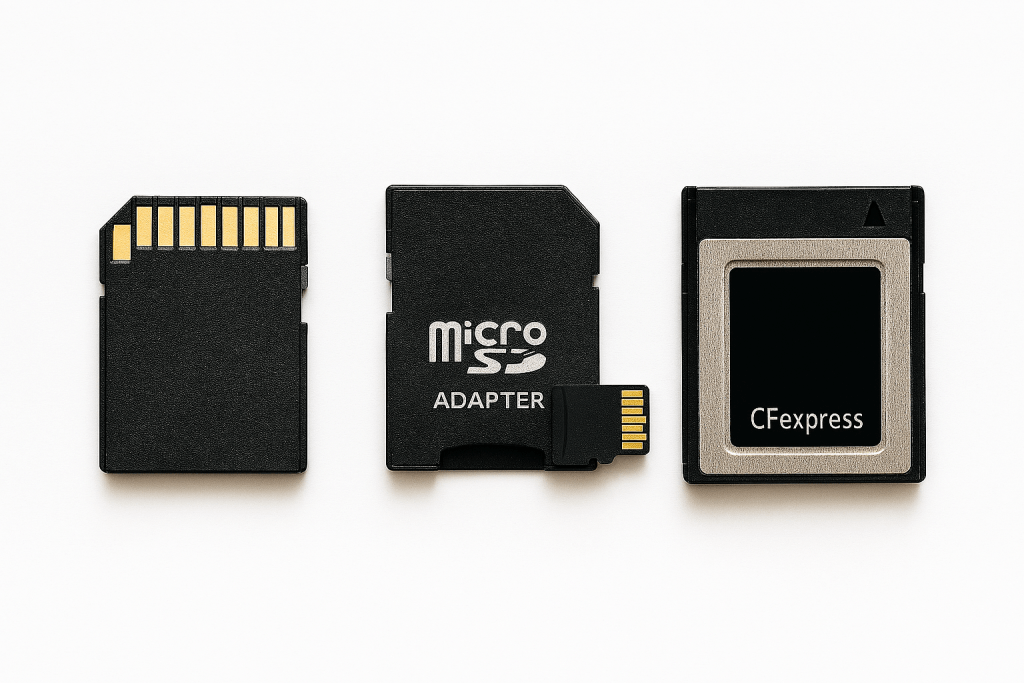
- SD Cards: The most common type. Used in most consumer cameras. They’re about the size of a postage stamp. If you have a DSLR or mirrorless camera, you probably use these.
- microSD Cards: Smaller cards, normally used in phones and action cameras. Some cameras use these with an adapter.
- CFexpress and XQD Cards: Faster, more expensive cards used in professional cameras. You only need these if your camera specifically requires them.
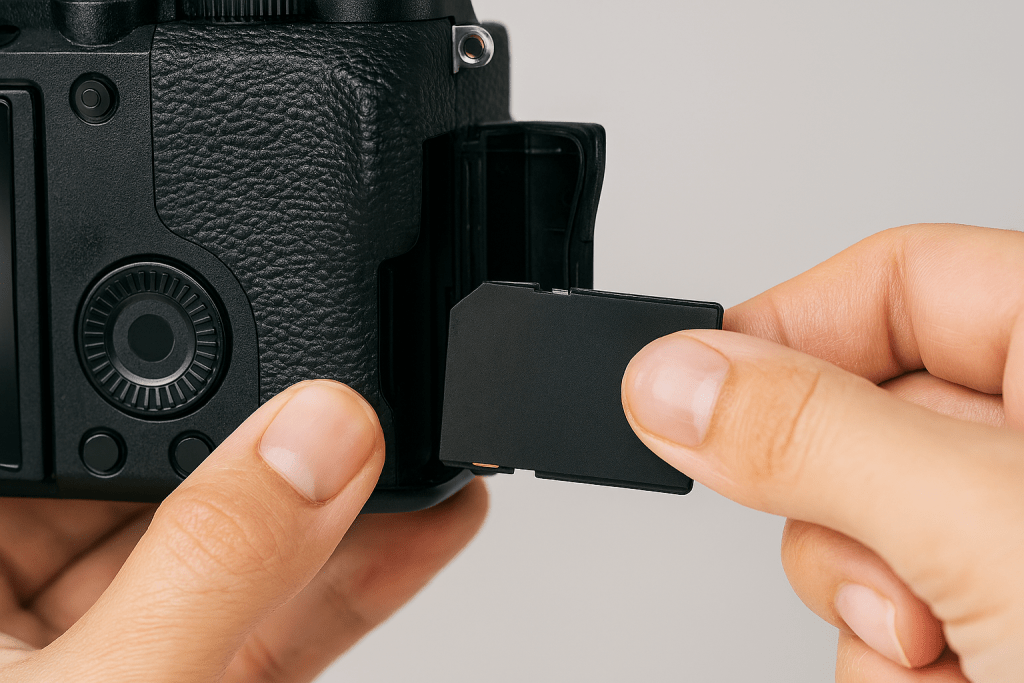
Speed matters. That little number on the card tells you how quickly it can save photos. A slow card makes a fast camera feel sluggish. You might miss shots while the camera waits for the card to catch up. For photography, look for a class 10 card or one with a UHS-I or UHS-II rating. For video, you need something faster still. If in doubt, buy the fastest card your budget allows.
Capacity matters too. A 32GB card holds roughly 1,000 RAW files or 4,000 JPEGs. A 128GB card holds four times that. Bigger isn’t always better. Some photographers prefer several smaller cards because if one fails, you do not lose everything. Others like one large card, so they never have to swap. Choose what feels right for you.
How to Insert a Memory Card Properly
This is where things go wrong for many beginners. Memory card slots are designed to only accept cards one way, but people still force them. Here is the correct method.
First, find the memory card door. It is usually on the side of your camera, sometimes on the bottom. It will have a small flap with a symbol that looks like a memory card. Open it gently.
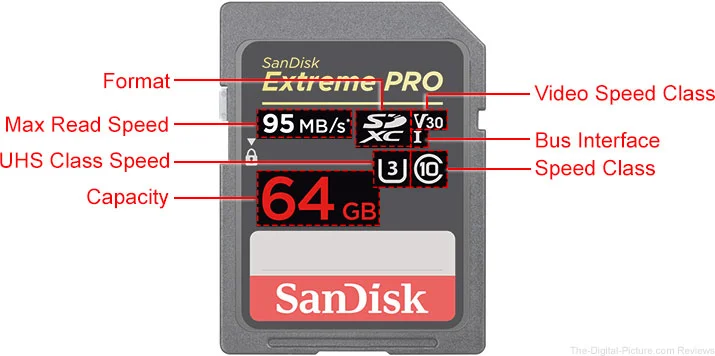
Look at your memory card. Notice it has a bevelled corner on one side. This corner matches a bevelled shape inside the slot. Align the card so the bevelled corners match. The label side normally faces the back of the camera, but check your camera manual to be certain.
Push the card in gently until you feel a slight click. Do not force it. If it does not go in easily, you have it the wrong way round. Take it out and try again. The card should sit flush with the camera body.
To remove the card, press it in slightly. It will spring back out far enough for you to grab it. Pull it out carefully. Never yank a card out while the camera is writing to it. If you see a red light flashing, wait until it stops.
What Does Formatting Mean?
Formatting a memory card is like giving it a fresh start. It wipes the card clean and sets up the filing system your camera uses to store photos. Think of it as clearing out an old filing cabinet and putting fresh labels on all the drawers.
You must format a new card before first use. You should also reformat cards regularly, especially if you have used them in different devices. Formatting in your camera, not your computer, is crucial. Your camera speaks a slightly different language to your laptop, and formatting in camera ensures they understand each other perfectly.
Formatting deletes everything. Every single photo, video and file. Always, always, always transfer your photos to your computer first. I cannot stress this enough. I have seen grown photographers cry because they formatted a card full of wedding photos.
Quick format versus full format: most cameras only offer a quick format, which is fine. It simply clears the file index. A full format scans the entire card for errors, but takes much longer. For normal use, quick format is all you need.
How to Format Your Memory Card
The exact steps vary by camera brand, but the process is similar for all. Here’s how to do it on most Canon, Nikon and Sony cameras.
First, with the camera turned on, press the menu button. This is usually a button marked MENU on the back of the camera.
Navigate to the setup menu. This is normally a tab with a spanner or tools icon. Use the arrow buttons or command dial to move through the menus.
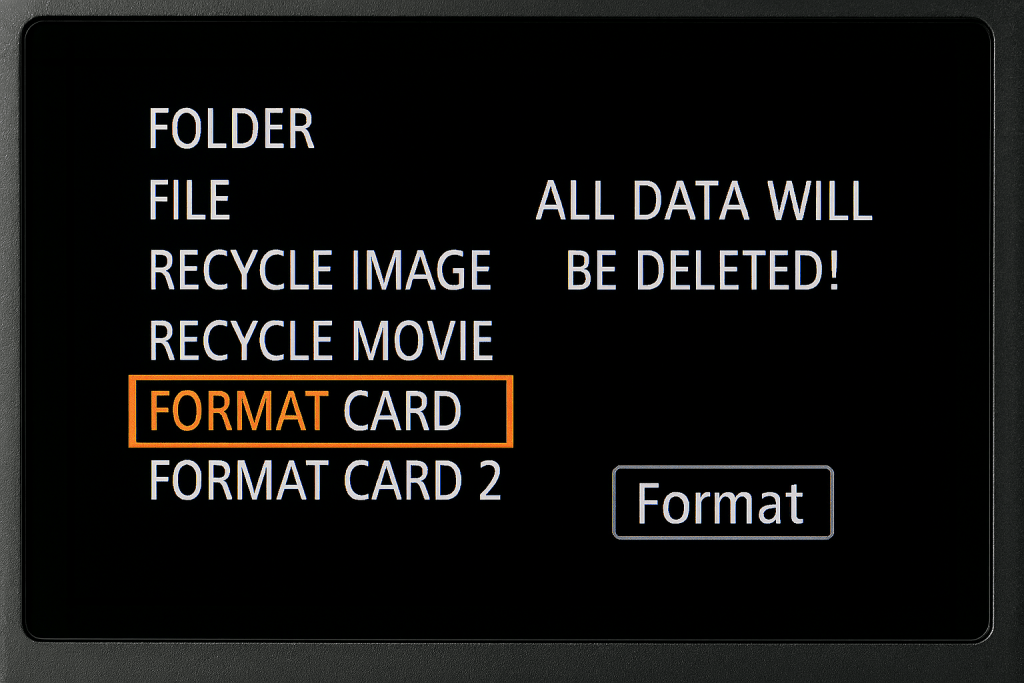
Look for an option called Format Card or something similar. It might be under a sub-menu called Card Setup or Card Functions.
Select Format Card. The camera will show a warning message. “All data will be deleted”. This is your last chance to check you have backed up your photos.
Select OK or Yes. The camera will take a few seconds to format the card. You will see a progress bar. When it finishes, the card is ready to use.
Pro tip: Some cameras have a shortcut. Holding down two buttons simultaneously, often marked with a red dot and a trash can symbol, will format the card without going through menus. Check your manual for this feature. It saves time but makes it easier to format by accident, so be careful.
Best Practices to Keep Your Cards Healthy
Memory cards are remarkably tough, but they are not indestructible. A few simple habits will keep them working reliably for years.
- Format in camera, not in computer. Your camera sets up the card exactly how it likes it. Your computer does not.
- Never fill a card completely. Leave 10% free space. Cards get slower as they fill up, and the last few shots might not save properly.
- Eject properly. When removing the card from your computer, use the eject function. Do not just yank it out. This prevents data corruption.
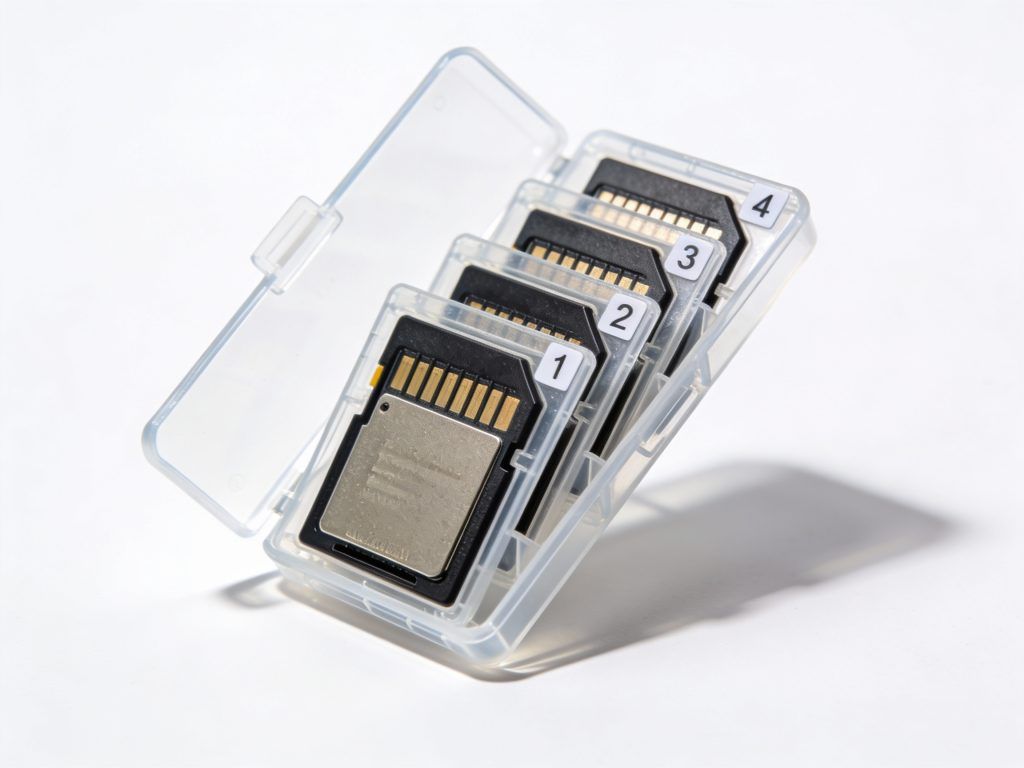
- Keep cards in cases. Those little plastic cases they come in are not packaging to throw away. They protect the contacts from dust and scratches.
- Label your cards. Use a permanent marker to write a number on each card. If one starts playing up, you can identify it easily.
- Rotate cards. If you have several, use them in rotation. This spreads the wear evenly.
- Never switch cards between cameras without formatting. Different cameras use different filing systems. Using a card straight from another camera can cause errors.
Memory cards have a limited lifespan. They can only be written to a certain number of times before they wear out. For most people, this means years of use. But if you are a professional shooting thousands of frames every week, replace your cards every year or two. A new card costs less than losing a job because of a card failure.
Common Problems and Simple Fixes
Even with the best care, things sometimes go wrong. Here is how to fix the most common memory card problems.
Card Full message when you know it is empty. This usually means the card needs formatting. Transfer any photos you want to keep, then format the card in your camera.
Card Error message. Turn the camera off, remove the card and reinsert it. Make sure it clicks into place properly. If the error persists, format the card. If it still shows errors, the card might be damaged. Replace it.
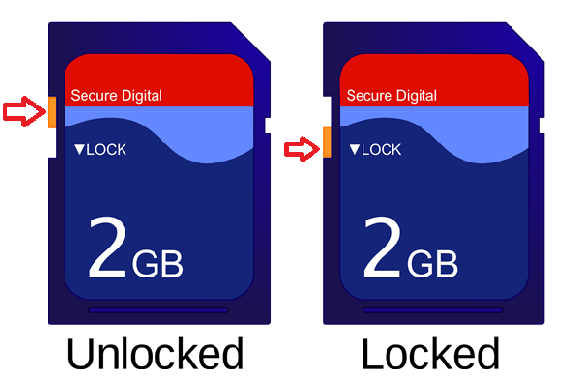
Camera says card is write protected. SD cards have a tiny switch on the side. If it is in the locked position, the camera cannot save photos. Slide the switch upwards to unlock the card.
Photos are corrupt or will not open. This can happen if you remove the card while the camera is writing, or if the card is failing. Always wait for the red light to stop flashing before opening the card door.
Computer cannot read the card. Try a different card reader. Sometimes the reader fails, not the card. If that does not work, the file system might be corrupted. Formatting will fix it, but you will lose the photos.
When to give up on a card. If a card gives you repeated errors, even after formatting, stop using it. Your photos are worth more than the cost of a replacement. Think of it as a small insurance policy.
From Confusion to Confidence
Memory cards might seem boring, but understanding them properly saves headaches. You now know how to choose the right card, insert it correctly, format it safely, and fix common problems. These are foundation skills. They are not glamorous, but they are essential.
This week, practice formatting your card in camera. Do it even if you do not need to. Make it muscle memory. Then label your cards and organise them properly. Small habits make big differences.
What is your biggest memory card frustration? Have you ever lost photos because of a card problem? Tell me in the comments on the Facebook or X.com page. I read every single one.